Account management for admins

Flex token usage


On this page: View Flex token usage > Understand your token usage summary > Token usage by product > Token usage by user > Display names and email addresses > Export token usage report 


Flex usage reporting shows your teams’ use of Flex prepaid tokens summarized by product and by user. As an admin, you can manage token usage and forecast for future purchases. 


Data is protected by Autodesk privacy principles and is only used for the purposes for which it was collected. For more information, see the Autodesk privacy statement.


View Flex token usage

  1. Sign into your Autodesk account.

  2. Select Reporting > Token Usage.

  3. On the Token Usage screen, select a team from the dropdown menu.

Note: For real-time balances for Flex tokens you can also go to the Balances page. 

Understand your token usage summary

The token usage Summary tab displays the following information for each team you select: 

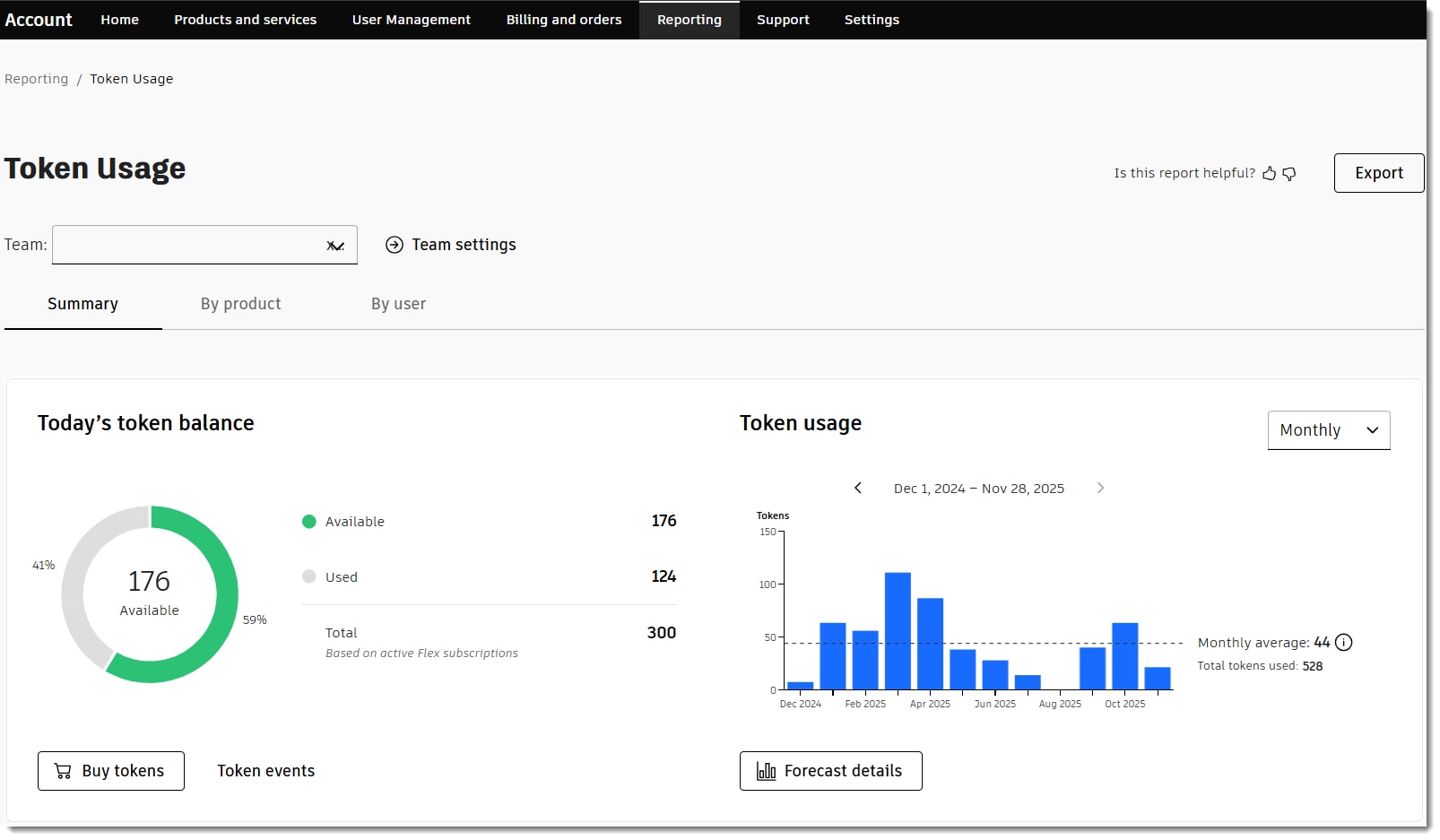
Autodesk Flex token usage report showing token balance chart and monthly usage graph.

Upper section: Today’s token balance and Token usage 

  • Tokens available: The number of unused tokens available to users in the team. Unused tokens from expired flex packs are excluded, as are unused tokens from other teams. 
  • Tokens used: Shows the number of tokens that all users have consumed from active Flex subscriptions when they access products and services. 
    Note:
     Active Flex subscriptions are those purchased within the last 12 months. 
  • Tokens total: Shows all tokens from active subscriptions associated with your team. This number adds together both available and used tokens but doesn’t count tokens from expired subscriptions. 
  • Token events: When you select the token events button, you can view how many tokens were added or removed in the last 90 days. These changes may come from new purchases, token expiration, moving tokens, or merging teams. 
    Note:
    You can choose to see data from the past 30 days, 60 days, 90 days, or select a custom range for up to 90 days. 
  • Token usage: A line graph that shows how many Flex tokens your team has used from both active and expired Flex subscriptions.  When you hover over the line graph, you will see the number of tokens used and a breakdown by product. You can select to see token usage by day, week, month, or year. 
    You can view the average token amount for each time range. We calculate the average using the selected date range. To do this, we divide the total tokens used by the number of days, weeks, or months in that range. If you select yearly usage, you can compare tokens used so far this year with tokens used in the previous year.
  • Forecast details: Select the Forecast details button to see when your tokens might run out. We show this by dividing your teams current token balance by your average monthly use. 

Lower section

Select a time range (see Time ranges below) to view: 

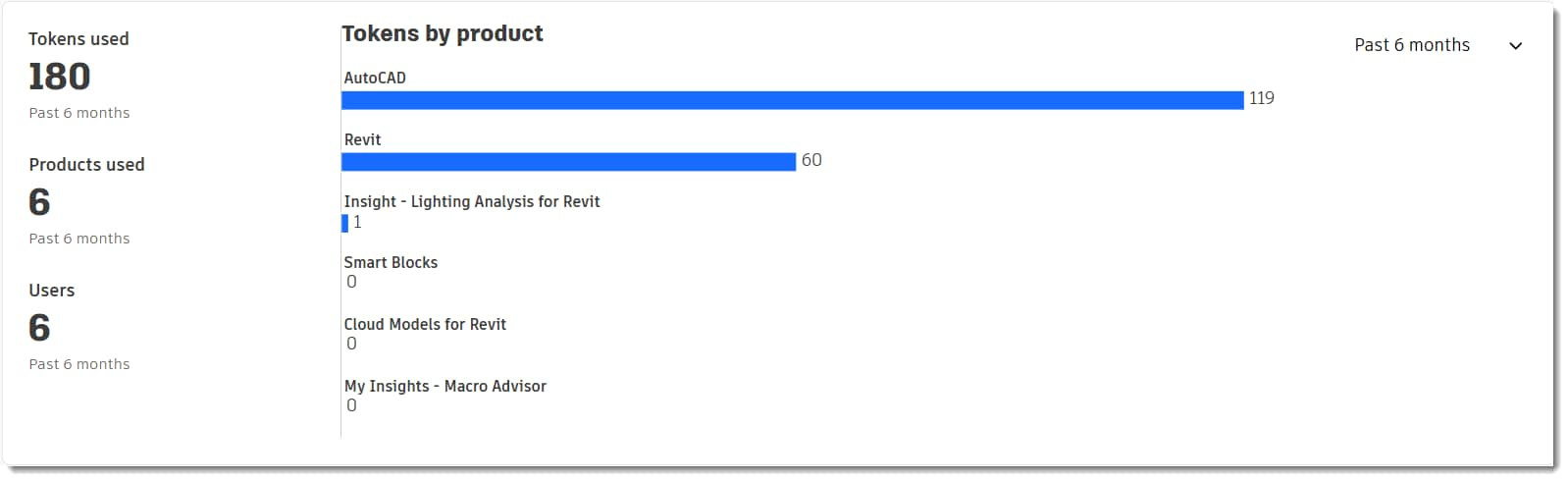
Autodesk Flex tokens used and line graph showing Flex tokens consumed by product.
  • Tokens used: The total number of Flex tokens used within the time range. 
  • Products used: The total number of unique products accessed using Flex within the time range. 
  • Users: The total number of users who have accessed at least one product or service using Flex within the time range. 
  • Tokens by product: Line graphs display each product name and shows how many tokens your team used for each unique product during the selected time range. 

Note: Usage details include both active and expired Flex subscriptions. 


Time ranges

Measurements will vary depending on the selected time range: 

  • Past 30 days. Rolling 30-day window 
  • Past 3 months. Rolling 3-month window 
  • Past 6 months. Rolling 6-month window 
  • Past 9 months. Rolling 9-month window 
  • Past 12 months. Rolling 12-month window

Each selection contains the actual dates within the range. For example: Past 3 months (October 10th to January 10th). 


Token usage By product

The token usage By product tab shows the following information for each selected team and time range (see Time ranges above): 

Upper section

  • Total tokens: Total number of tokens used for all products and services accessed in the selected time range. 
  • Products used: The number of unique products accessed with Flex tokens in the selected time range. 

Lower section 

  • Product name: The name of the product accessed using Flex. 
  • Total users: The number of users in the team who accessed the product or service in the selected time range. 
  • Total tokens used: The quantity of tokens used to access this product or service by all users in the selected time range. 
  • Average tokens used each month: The average number of tokens used per month to access the product or service. We calculate averages by dividing the total number of tokens used by the number of months in the selected time range, even if that time range has not finished. 

Select View details in any row for information about each product or service in the report: 

  • Token distribution: A distribution bar chart showing the number of users falling into token consumption bands. For example, the chart could show that seven users consumed 0-100 tokens and three users consumed 101-500 tokens. This helps classify users into groups based on their average consumption. 
  • Users by version: The count of users who accessed desktop product versions in the selected time range. 
  • Name: Users who have accessed the selected product with the total number of tokens each user used, and the average tokens used per month by the user. When you select a row and choose View details, you see user-specific information, just like the details shown in the By user tab.  

Token usage By user

The token usage By user tab shows the following information for each selected team and time range (see Time ranges above):

Upper section

  • Total users: Total number of users in the team who have accessed a product or service using Flex during the selected timeframe. 
  • Total tokens: Total number of Flex tokens used by all users in the team for the selected timeframe. 
  • Products used: The number of unique products accessed via Flex over the selected timeframe. 

Lower section 

  • Name: The name of the user who accessed at least one product or service via Flex. 
  • Products used: The name of the products or services that this user accessed via Flex. 
  • Total tokens used: The total number of tokens used by this user over the selected timeframe to access Flex products and services. 

Select any name for additional information about the selected user: 

  • Tokens used:  Total number of Flex tokens used for all products in the selected time range. 
  • Days used: Total number of days that this user accessed a Flex product or service out of the total number of days in the selected time range. 
  • Products used: The number of unique products accessed with Flex in the selected time range. 

Note: For each product used by the selected user, you can see a chart that shows the number of days used each week. You can also see a bar chart showing count by product version. 


Display names and email addresses

The token usage report shows users’ first and last names and email address by default. As an admin, you can update this setting any time in your Team settings. 

  1. Select Team settings from the Summary, By product, or By user tabs in the token usage report to view an overview page of your teams. Here you can check whether personal data is on or off. 
  2. Under Reporting, look for Personal Data. Tick the box to include personal data or untick it to exclude it.  

Export token usage report

You can download an Excel or CSV file to view how many tokens users on your team used, which products they accessed, and on which days directly from the Token usage reporting pages. 

  1. Sign into your Autodesk account.   
  2. Select Reporting > Token usage
  3. Select your team and the date range for the export. 
  4. Choose Export
  5. In the side panel, choose whether you want to download the report as an Excel or a CSV file. 
  6. The export begins, and the system automatically downloads your files when they are ready. You can close the information pop-up, and the report export will continue. 
  7. You can access all your exports in your Autodesk account under Reporting > Export or in your browser's default download folder. 
  8. Export history in account shows your recent exports. You can download a report or delete it from this page. You can view a report on this page if you initiated the export. 

Note: We automatically delete past exports after 14 days to maintain security and manage storage. 


Schedule token usage report

You can schedule the token usage report to automatically send you an email when your report is ready to download. The process works the same way for usage, seat, and token reports. 


Change Notification: We plan to retire the combined Seat and Token Usage export file under Reporting > Export > Usage (with date range) in 2026. You will be able to use two separate export files for Seat Usage and Token Usage, like the Token Usage export described above. If you haven’t used the Seat usage and Token usage pages for your exports, we encourage you to get familiar with them and transition to the separate files as soon as feasible for your organization. 


To learn more about exported data, see  export data fields.


Need help? Ask the Autodesk Assistant!

The Assistant can help you find answers or contact an agent.


What level of support do you have?

Different subscription plans provide distinct categories of support. Find out the level of support for your plan.

View levels of support